C007 - Text and media
Content element C007 - Text and media is used particularly frequently when maintaining pages. You use this element to insert continuous text with headings and images. The different variants of this content element are presented below.
In the first tab, General, you can place a heading above the text. The Rich Text Editor (RTE) is also available as a central tool and offers a wide range of formatting options for text content. The functionality and structure of the text editor is basically similar to Word or other word processing programs. In addition to bold, italics and underlining, the strikethrough format option is usually also available. However, it depends on the purpose of the content of the respective element which formatting is permitted. The list may be smaller or not available at all.
To link text, select a word or a whole group of words and click on the link icon. The link browser then opens and you have the option of inserting different types of links via various tabs. For example, you can add an internal link to the homepage via the first tab Page. For better readability in the text, links should be placed at the end of the text and not directly in the body text
Further information
Internal link to the NCPC homepage
External link to German Cancer Aid
In the RTE, you also specify the hierarchy level (H3-H4) of the heading. The H1 heading is the first heading on the page and therefore corresponds to the page title. The H2 heading corresponds to the "Heading" input field of the content element. The Hx declaration is an important tool for structuring the content on a page in a meaningful way. The H1 heading is followed by one or more H2s. An H2 is followed by an H3 and so on.
This is what heading 3 looks like
This is what heading 4 looks like
A clean Hx declaration is important for the accessibility of the page. You should therefore never interrupt the Hx structure for visual reasons.
- There are also unordered lists...
- with any number of...
- list items
Other list formats are also possible
- There are also unordered lists...
- with any number of list items
C007 - Text with quote on the left
A quote can be on the left or right. Here it is on the left.
Redakteur
In the Media tab, you can differentiate between the Image, Quote or Teaser variant in the Characteristics field. If you select the Quote variant, you can create a quote as shown. You can influence the position of the quote by selecting "Quote left" or "Quote right".Lorem ipsum dolor sit amet, consetetur sadipscing elitr, sed diam nonumy eirmod tempor invidunt ut labore et dolore magna aliquyam erat, sed diam voluptua. At vero eos et accusam et justo duo dolores et ea rebum. Agna aliquyam erat, sed diam voluptua.
C007 - Text with quote on the right
A quote can be on the left or right. Here it is on the right. Lorem ipsum dolor sit amet, consetetur sadipscing elitr.
Redakteur
In the Media tab, you can differentiate between the Image, Quote or Teaser variant in the Characteristics field. If you select the Quote variant, you can create a quote as shown. You can influence the position of the quote by selecting "Quote left" or "Quote right". Lorem ipsum dolor sit amet, consetetur sadipscing elitr, sed diam nonumy eirmod tempor invidunt ut labore et dolore magna aliquyam erat, sed diam voluptua. At vero eos et accusam et justo duo dolores et ea rebum. Stet clita kasd gubergren, no sea takimata sanctus est Lorem ipsum dolor sit amet.
C007 - Text with quote below
A quote can also be placed below the text. It can then be a little longer and still be easily understood by the user.
Redakteur
In the Media tab, you can differentiate between the Image, Quote or Teaser variant in the Characteristics field. If you select the Quote variant, you can create a quote as shown. You can influence the position of the quote by selecting "Quote left" or "Quote right" or "Quote below text".
C007 - Text and media - Left image variant
Texts that are to appear above the image can be entered in the Introduction text field.

As soon as you have added an image in the Media tab, you can open the editor for further image editing. The image editor allows you to adjust the image directly in the TYPO3 backend. This allows you to select any image section with a defined aspect ratio. The "Square" image format is selected for this content element. In the Media tab, you can also determine the position of the image in relation to the text element. The image position is set to the left for this element.
C007 - Text and media - Right image variant
Texts that are to appear above the image can be entered in the text field introduction text field. The texts can also be highlighted with the RTE Bold and italic can also be highlighted

As soon as you have added an image in the Media tab, you can open the editor for further image editing. The image editor allows you to adjust the image directly in the TYPO3 backend. This allows you to select any image section with a defined aspect ratio. The "Square" image format is selected for this content element. In the Media tab, you can also determine the position of the image in relation to the text element. The image position is set to the right for this element.
C007 - Text with teaser on the right
The Text with teaser element can have an optional introductory text.
Here you will find a short description of what users can expect on the target page. This teaser always links to an internal page
In the Media tab, you can choose between the Image or teaser variant. If you select the Teaser variant, you can create a teaser as shown. You can influence the position of the teaser by selecting "Image left" or "Image right" .
C007 - Text with teaser on the left
Here you will find a short description of what users can expect on the target page. This teaser always links to an internal page
In the Media tab, you can choose between the Image or teaser variant. If you select the Teaser variant, you can create a teaser as shown. You can influence the position of the teaser by selecting "Image left" or "Image right".
C016 - Image or image slider
Content element C016 Image slider allows you to place images on your content page in the form of a slider. The use of an image slider should always correspond with the content and emphasize it. The topics that are to be emphasized can be illustrated particularly well with images. The motifs are effective or memorable. When using images, copyright must always be observed and, if necessary, cited. A caption can also be added.
(Kopie 1)


C016 - Image or image slider - Full-area image variant
You can also create just one image using content element C016- Image or image slider . If only one image is selected, the image is automatically displayed over the entire area.
Heading C 16

C006 - Video
If you want to add your own moving images to your content page, you can integrate videos from YouTube, Vimeo or directly from TYPO3. The video content element is available for this purpose. To provide the video, you only need the corresponding video link and can add it as a media URL in the video content element or via the file list. To play integrated YouTube or Vimeo videos, the user must first accept the data protection notice. For this purpose, a preview image is displayed for each video in advance. The preview image must be editorially stored.

C006 - Video - Slider variant
As soon as you link several videos, this element automatically becomes a slider.
- Description

-



C008 - Downloads
Some additional files can be downloaded here.



C010 - Publication
This element is used for the description and easy download of important publications. You can add a preview image of the publication and link to the actual file in TYPO3.
JPG (2 MB)
C011 - Accordion
Accordions are used to display longer content in a compact format where information is organized in expandable sections. Each section or "accordion entry" can be opened or closed by clicking on the title.
It allows for a structured presentation of information, especially for long texts, FAQ pages or complex content, and allows for some interaction by visitors.
The editors should pay attention to precise and meaningful titles so that users can quickly recognize what is behind a section. The content should not be too long and should be limited to text. If there is an impulse to nest further content in accordions, the page is overloaded and should be divided into subpages.
Furthermore, the Rich Text Editor (RTE) is available to you as a central tool and offers a wide range of formatting options for text content. The functionality and structure of the text editor is basically similar to Word or other word processing programs. To link text, select a word or a whole group of words and click on the link icon. The link browser then opens and you have the option of inserting different types of links via various tabs. For example, you can add an internal link to the homepage via the first tab Page.
For better readability in the text, links should be placed at the end of the text and not directly in the body text
Furthermore, the Rich Text Editor (RTE) is available to you as a central tool and offers a wide range of formatting options for text content. The functionality and structure of the text editor is basically similar to Word or other word processing programs. To link text, select a word or a whole group of words and click on the link icon. The link browser then opens and you have the option of inserting different types of links via various tabs. For example, you can add an internal link to the homepage via the first tab Page.
For better readability in the text, links should be placed at the end of the text and not directly in the body text
C012 - Note box
- This element should enable the user to get a quick overview
- The boxes visually emphasize the text and create attention
- This can be placed anywhere on a content page
- Different illustrations can be selected
- The selection of illustrations and their positioning was determined programmatically

C13 - Audio
Die Transkription ist wichtig, damit Menschen mit Hörbeeinträchtigungen den gesprochenen Text verstehen können.
C014 - Link list
It provides visitors with a one-stop shop to find useful and relevant resources related to the website's topics.
C017 Contact Person - One Contact

Dr. Delia Braun
Scientific Strategy Department, DKFZ
C017 Contact Person - two contacts
Dr. Delia Braun
Scientific Strategy Department, DKFZ
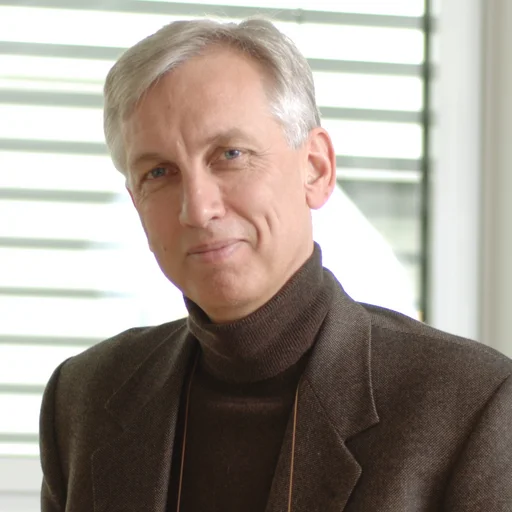
Prof. Dr. Rudolf Kaaks
Head of the "Epidemiology of Cancer" department
C017 Contact Person - three contacts
Dr. Delia Braun
Scientific Strategy Department, DKFZ

Prof. Dr. Hermann Brenner
Head of the "Clinical Epidemiology and Ageing Research" department and scientific coordinator of the "Cancer Prevention Graduate School"
Prof. Dr. Rudolf Kaaks
Head of the "Epidemiology of Cancer" department